

Interactive Touch Displays.
Choose Around Your Room and Workflow.

Compare large-format interactive displays for teaching, training and meetings. Match screen size, touch, system and installation to the way people will use the display.

55–98 in.Screen options
10 / 40Touch-point options
Wall / StandInstallation choices

Display hardware, touch, operating system and application software are separate configuration decisions.

Large-format interactive touch display in a professional indoor environment

Explore the Interactive Display Range

Compare the two models directly. Both list the same screen sizes and touch-point choices; review brightness, system and software requirements before selecting.

Compare both models
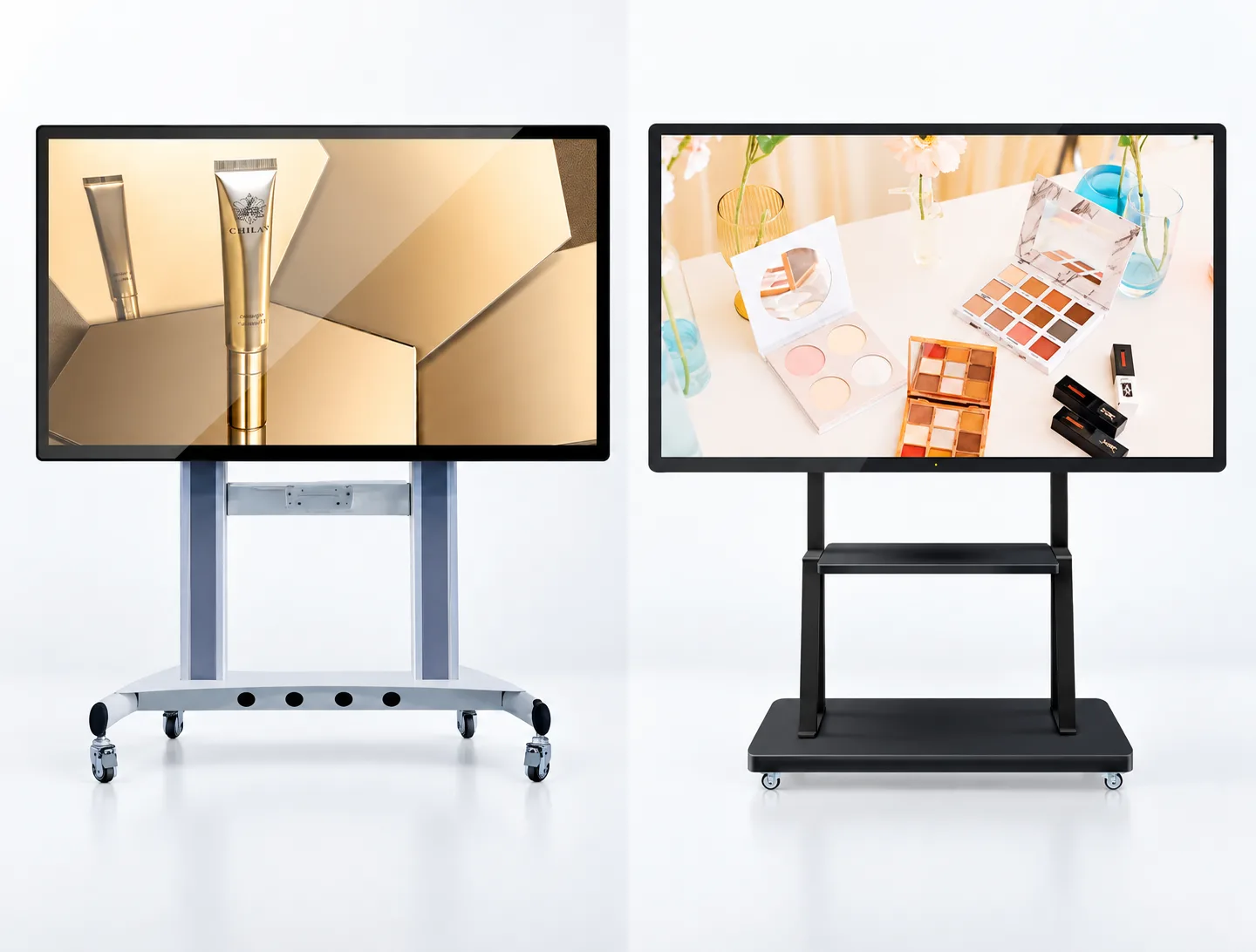
EV300L Interactive Whiteboard Display product view

Interactive Whiteboard Display

EV300L

Configure a large-format display for teaching, annotation and meeting-room presentation.

Screen sizes
55 / 65 / 75 / 86 / 98 in.
Brightness
350 / 700 / 1,000 nits
Touch options
10 or 40 points; by configuration
Resolution
FHD / 4K options

Capacitive or infrared touch; wall mounting or an optional compatible mobile stand.

View Details & SpecsDiscuss This Configuration
EV300L1 Interactive Flat Panel Display product view

Interactive Flat Panel Display

EV300L1

Match a classroom, training or collaboration display to your room and software environment.

Screen sizes
55 / 65 / 75 / 86 / 98 in.
Brightness
350 / 700 / 1,000 / 2,000 nits
Touch options
10 or 40 points; by configuration
Resolution
FHD / 4K UHD options

An additional 2,000-nit option is listed; touch and mobile stand are configuration-dependent.

View Details & SpecsDiscuss This Configuration

Listed values are configuration options, not guaranteed combinations or universal standard equipment. EV300L's final native pixel orientation requires panel confirmation; do not interpret its source notation as a portrait-display claim.

Specify the software, not just the screen.

Confirm whiteboarding, annotation, casting, remote collaboration and licensing with the chosen system. Android and Windows options do not automatically mean a dual-system product.

Start with the room and the people using it.

Share viewing distance, audience size, writing workflow, connected devices and whether the display needs to move between rooms.

Get Selection Advice

Compare Both Interactive Displays

Use the listed configuration differences to prepare questions. Confirm the exact panel, touch and system package in the quotation.

Configuration options — subject to project confirmation
Selection pointInteractive Whiteboard Display
EV300L
Interactive Flat Panel Display
EV300L1
Screen sizes55 / 65 / 75 / 86 / 98 in.55 / 65 / 75 / 86 / 98 in.
Brightness options350 / 700 / 1,000 nits350 / 700 / 1,000 / 2,000 nits
Touch technologyCapacitive or infrared; confirm inclusionOptional capacitive or infrared; confirm inclusion
Touch points10 or 40, depending on configuration10 or 40, depending on configuration
Display resolutionFHD / 4K options; final native pixel orientation requires confirmationFHD / 4K UHD options; confirm selected size
System routesDriver board / standalone / Android / WindowsDriver board / standalone / Android / Windows
InstallationWall-mounted or optional compatible mobile standWall-mounted or optional wheeled floor stand
Software scopeConfirm whiteboard application, compatibility, licensing and collaboration workflowConfirm whiteboard application, casting support, compatibility and licensing

Both are indoor products. Optional stands, cameras, software, licenses and accessories must be confirmed separately; no universal touch-accuracy or writing-latency figure is stated here.

How to Choose an Interactive Touch Display

Before requesting a quote, follow these steps to define the technical requirements for your interactive display project.

1

Define Interaction Requirements

Determine how users will interact with the screen and whether the project requires touch navigation, writing, annotation, or other forms of on-screen input.

2

Confirm Display Requirements

Review the preferred screen size, viewing distance, content resolution, ambient lighting conditions, and required image quality based on verified product and project information.

3

Review Touch and Writing Requirements

Confirm the required touch technology, number of simultaneous touch points, writing accuracy, response time, stylus support, palm rejection, and annotation features.

4

Plan Software and Connectivity

Identify the required operating system, content sources, wired inputs, network connections, screen-sharing methods, software platforms, and computer module requirements.

5

Confirm Installation and Management

Review the installation method, wall structure, mobile stand requirements, cable access, power access, maintenance requirements, device management, and expected operating schedule.

Key Requirements for Interactive Display Projects

Refer to the following planning considerations when preparing hardware specifications.

Display Size and Viewing

Display size should be evaluated alongside viewing distance, room dimensions, content format, and installation location to determine the appropriate physical dimensions.

Touch Performance

Touch technology, supported touch points, accuracy, response time, and input methods should be confirmed against the technical specifications of the selected model.

Writing and Annotation

Whiteboarding, writing, annotation, file export, and content-saving capabilities depend on the selected hardware configuration and verified software availability.

Systems and Software

The operating system, computer modules, software compatibility, account requirements, updates, and security policies should be reviewed before final selection.

Connectivity and Content Sharing

Wired inputs, USB connections, network access, wireless screen sharing, and external device compatibility should be confirmed for each target display model.

Installation and Maintenance

Mounting structure, ventilation, power access, cable routing, service access, required accessories, and ongoing device management should be planned before installation.

Plan Your Interactive Display Configuration

Use this checklist to prepare an initial planning outline for your project requirements. Each item represents a requirement that needs to be confirmed.

Important Note

This is a planning tool only. You must confirm the final product configuration, structural engineering data, and technical compatibility with our team before placing an order.

Submit Planning Requirements

Required Planning Areas

  • Hardware Selection
  • Physical Dimensions
  • Touch and Interaction
  • Software and Operating System
  • Connectivity
  • Audio/Video
  • Installation
  • Project Scope

Interactive Display Questions

Is touch included as standard?

Do not assume that every configuration includes touch. Confirm capacitive or infrared technology, 10 or 40 points, and inclusion in the final quotation.

Are Android and Windows included together?

They are listed as configuration routes. A dual-system arrangement, computing hardware and software compatibility require separate confirmation.

Is whiteboard or screen-sharing software included?

Confirm the specific application, operating system, casting method, licenses and compatibility with your devices. Display hardware alone does not establish the software package.

What should I provide for a quotation?

Share the preferred model, screen size, quantity, room and viewing conditions, touch requirements, system or connected computer, software, installation and accessory needs.

Plan Your Interactive Display Project

Tell us about the room, viewing distance, intended interaction and software environment. We can review the display and configuration requirements together.

lcdsales@univiewlcd.com
+86-755-21009715

Include your preferred model, screen size, quantity, touch requirements, software and installation method in the message.

Request a Project Quote

Fields marked * are required.