What Is a Digital Signage Content Management System?
A digital signage content management system (CMS) is the centralized software platform used to create, schedule, manage, and distribute multimedia content across a network of digital screens. Whether managing a single outdoor kiosk or thousands of commercial displays across global retail chains, the CMS serves as the operational backbone that connects your visual assets to your target audience in real time.
What a Digital Signage CMS Actually Controls
A modern digital signage content management software platform goes beyond simple media playback. It grants full administrative and operational control over your entire display ecosystem from a single dashboard:
- Content Layouts and Zone Splitting: Design multi-zone screen layouts combining 4K video, dynamic imagery, scrolling text tickers, live RSS feeds, and interactive web widgets.
- Intelligent Playlists & Scheduling: Automate when and where content plays based on specific hours (dayparting), dates, looping sequences, or conditional triggers.
- Remote Device Monitoring: Track real-time online/offline status, capture live screen previews, and view performance diagnostics across all terminals.
- Hardware & System Maintenance: Schedule automated screen on/off times, execute remote system reboots, and push over-the-air (OTA) firmware and application updates.
- Multi-User Access & Permissions: Assign granular, role-based access rights for global administrators, local store managers, and marketing contributors.
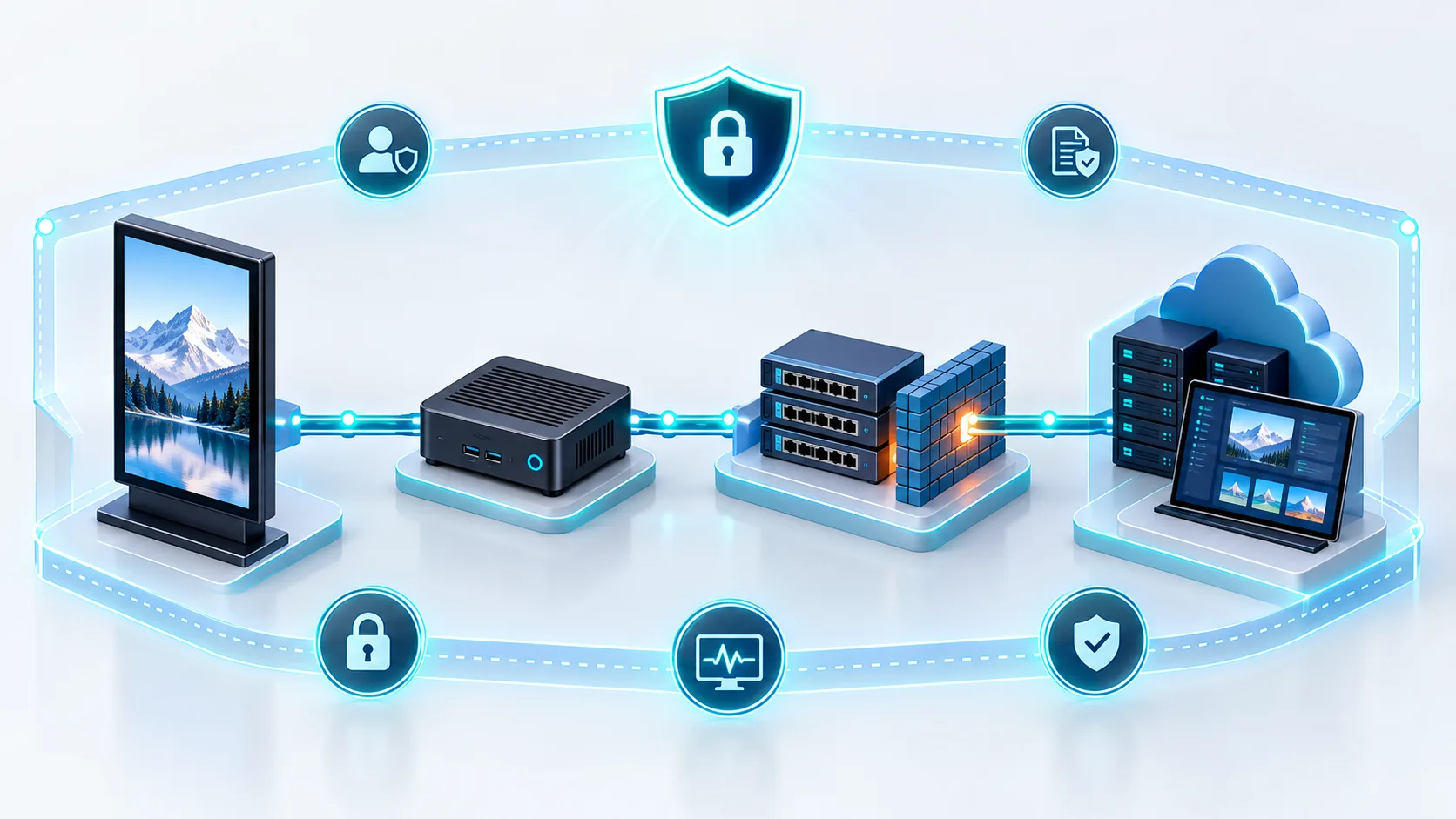
Building an enterprise digital signage solution requires three distinct components working in full synchronization. Understanding the role of each element ensures smooth hardware-software integration and reliable 24/7 operation.
Digital Signage CMS
(The Brain) | Centralized management and distribution | Cloud or on-premise control hub; content authoring and layout design; scheduling and multi-screen network distribution |
Media Player
(The Engine) | Local processing and rendering | Android, Windows, Linux, or embedded SoC; local media caching; Full HD to 4K UHD signal output |
Commercial Display
(The Canvas) | Visual output and presentation | Commercial LCD panels, stretched screens, or totems; high-brightness output; IP-rated housings and continuous operation |
How Does a Digital Signage CMS Work?
A digital signage content management system works through a synchronized architecture connecting our centralized control dashboard, secure cloud or local servers, and your deployed display endpoints. Instead of streaming raw video files continuously across the network, modern digital signage content management software acts as an orchestration engine. It packages layout instructions, media assets, and playback rules, delivering them directly to media players across your network for reliable, automated execution.
From Content Upload to Screen Playback
The workflow from initial asset upload to live playback follows an automated multi-step process:
- Asset Ingestion and Storage: You upload graphics, 4K video reels, dynamic web widgets, or live data feeds into the central CMS media library.
- Layout and Zone Composition: Using the visual layout editor, you assign specific content to multi-zone canvas areas (e.g., main video feed, ticker bar, real-time weather widget, or branded side banners).
- Scheduling and Distribution: You set playback triggers, dayparting schedules, and target screen groups. The CMS compiles these assets into an optimized playback package and distributes it to the designated endpoints over Ethernet, Wi-Fi, or 4G/5G cellular networks.
- Local Player Rendering: The display’s built-in system-on-chip (SoC) or external media player receives the package, writes the files to local solid-state storage, and renders the content seamlessly according to the scheduled timeline. Proper layout rotation and scheduling also support long-term hardware health by avoiding continuous static image retention, a vital consideration highlighted in our guide to LCD screen burn-in on 24/7 digital signage.
What Happens When the Internet Goes Offline?
A professional digital signage content management system is engineered with a store-and-forward architecture to eliminate single points of network failure:
- Local Storage Caching: Media players download and store all playlists, schedules, and visual assets directly onto onboard flash memory. Content never streams frame-by-frame from the cloud.
- Zero-Downtime Playback: If network connectivity drops, screens do not display loading spinners, blank screens, or error prompts. The media player continues looping the existing active schedule locally without interruption.
- Automatic Status Queuing: Dynamic elements that require live data hold their last known state, while internal event logs and proof-of-play records are securely cached on the local drive.
- Instant Resynchronization: When the network connection recovers, the media player automatically checks in with the central CMS, uploads device health and playback diagnostics, and downloads any newly scheduled updates in the background.
What Features Actually Matter in a Digital Signage CMS?
Choosing the right digital signage content management system comes down to operational efficiency. A capable CMS should eliminate repetitive manual work, streamline distribution across commercial display networks, and ensure 24/7 terminal stability without requiring on-site troubleshooting.
Below are the core capabilities that enterprise display deployments require:
| Media Management | Split-screen designer, multi-format support | Fast visual layout creation without third-party design tools |
| Automated Scheduling | Dayparting, calendar rules, conditional triggers | Precise content delivery based on time and audience |
| Fleet Monitoring | Real-time status, remote restart, OTA updates | Reduced on-site maintenance and zero unexpected downtime |
| Access Control | Role-based permissions, multi-tier approvals | Brand consistency and operational security across teams |
Content Creation and Media Management
A high-performance digital signage content management software must support native 1080p and 4K media without sluggish rendering. Key media tools to look for include:
- Multi-Zone Layouts: Built-in canvas editors that let you divide screens into custom zones for simultaneous playback of videos, static images, scrolling text tickers, and live widgets (weather, clocks).
- Format Flexibility: Native decoding support for MP4, AVI, PNG, JPEG, PDF, and web pages (HTML5).
- Cloud Asset Library: Centralized cloud storage with tagging, folder structures, and quick-search filters to keep media assets organized across campaigns.
Playlists, Scheduling and Dayparting
Automated scheduling ensures the right message displays to the right audience at the right time without daily manual intervention.
- Dayparting: Automatically switch visual campaigns based on operating hours (for example, breakfast menus switching to lunch offerings at 11:00 AM).
- Calendar-Based Triggers: Set start and expiration dates for limited-time promotions, holiday campaigns, or scheduled corporate announcements.
- Loop & Priority Playlists: Run regular looped content while maintaining the ability to interrupt schedules for urgent alerts or real-time priority announcements.
Screen Groups and Multi-Location Management
Managing displays across multiple facilities or cities requires a hierarchical network structure. A modern CMS allows you to group terminals by location, store format, screen orientation, or hardware model.
Using dynamic tags, you can push a unified national campaign to thousands of endpoints in one click, while allowing local branches to customize localized price tags or localized messages. Deployments running indoor floor-standing kiosk displays with easy remote CMS can organize screens by department or foot-traffic zones to ensure targeted delivery.
User Roles and Approval Workflows
Enterprise environments demand strict access management to safeguard brand standards and screen security.
- Role-Based Access Control (RBAC): Assign permissions based on user responsibilities (e.g., Super Admin, Content Designer, Store Manager, Viewer).
- Content Approval Gates: Require senior administrators to review and approve media assets before they go live on public-facing screens.
- Audit Trails: Comprehensive system logs tracking user logins, schedule updates, and remote configuration adjustments.
Remote Monitoring and Device Management
Hardware visibility is vital for large-scale digital display networks. A centralized digital signage CMS platform provides real-time telemetry and remote control over every connected commercial screen:
- Live Status Dashboard: Instant visibility into online/offline status, current playlist playback, CPU usage, and network health.
- Remote Screen Capture: Live preview of what is actively playing on the physical screen without visiting the site.
- Power & Maintenance Automation: Scheduled automated display on/off cycles, remote reboot capabilities, and Over-The-Air (OTA) firmware and APK updates.
API and Real-Time Data Integration
Dynamic data feeds keep digital displays fresh and contextually relevant:
- Live Data Widgets: Real-time RSS feeds, social feeds, exchange rates, and live queue management systems.
- Third-Party API Integrations: Connect your digital signage system directly with Point of Sale (POS), enterprise resource planning (ERP), or inventory databases to display real-time pricing and stock levels automatically.
- Emergency Broadcast Triggers: Instant emergency alert integration to override current playlists with safety notices or evacuation maps.
Proof of Play and Analytics
For retail networks and digital out-of-home (DOOH) operators, verifying ad playback is mandatory:
- Proof-of-Play Logs: Accurate, exportable reports recording the exact timestamp, duration, and terminal ID for every played media file.
- Hardware Uptime Reports: Historical logs showing display availability, network uptime, and operational run hours for audit verification.
Will the CMS Work With Your Digital Signage Hardware?
Selecting the right digital signage content management system depends entirely on how well the software connects with your physical hardware. As a manufacturer of commercial LCD digital signage, we design our displays and software ecosystems to work hand-in-hand, preventing playback failures, rendering glitches, and expensive downtime in the field.
A dependable digital signage content management software platform must natively support the operating systems powering your media players. Before rolling out your network, verify that the CMS player application runs smoothly on your hardware architecture:
- Android: Widely used for standalone commercial displays and smart kiosks due to efficient resource management and straightforward over-the-air (OTA) app updates.
- Windows: Ideal for complex multi-zone rendering, high-performance rendering tasks, and enterprise-managed networks.
- Linux: Favored for high-security environments, lightweight hardware footprints, and rock-solid 24/7 terminal stability.
Your hardware setup dictates how you deploy your CMS player client across screens:
- System-on-Chip (SoC) Displays: Commercial screens with built-in processing boards (usually running Android or specialized firmware). Deploying SoC screens eliminates external media player boxes, simplifies power routing, and lowers upfront deployment costs. For example, our wall-mounted digital displays for seamless content updates integrate native processing directly into the chassis for an all-in-one setup.
- External Media Player Boxes: Dedicated mini-PCs connected via HDMI. These provide higher processing power for intensive 4K rendering, multi-screen video walls, or legacy display retrofits.
| Cabling & Mounting | Clean, single-cable power setup | Requires extra HDMI and power cables |
| Maintenance | Single unit replacement | Independent screen or player replacement |
| Performance | Optimized for standard 1080p/4K playback | High-tier graphic and multi-output capabilities |
| Initial Cost | Lower overall hardware investment | Additional cost per media player |
Check Display Resolution, Orientation and Content Format
Not all screens share standard 16:9 landscape dimensions. Your digital signage CMS must support flexible canvas designs to deliver crisp visuals without distortion:
- Ultra-Wide & Custom Resolutions: Stretched bar LCDs and shelf-edge displays require non-standard canvas outputs to display menus, pricing, or transit timetables properly.
- Orientation Support: Native rendering in both portrait (vertical) and landscape (horizontal) layouts without lagging the display controller.
- Format Versatility: Seamless handling of 4K UHD video files, HTML5 web widgets, live streaming feeds, images, and dynamic text overlays within a single layout.
Check Support for Touchscreens, Kiosks and Video Walls
Advanced deployments require specialized features from your digital signage content management system:
- Interactive Kiosks & Touchscreens: The CMS must handle touch-triggered navigation, interactive web applications, and automatic timeout return-to-loop scripts.
- LCD Video Walls: Support for multi-screen canvas synchronization, bezel-compensation settings, and ultra-high-resolution canvas mapping across split outputs.
- Outdoor Totems & High-Brightness Displays: Software compatibility with onboard hardware monitoring sensors, allowing remote brightness adjustments, fan speed checks, and temperature alerts across IP-rated enclosures.
Cloud vs On-Premise Digital Signage CMS
Choosing the deployment architecture for your digital signage content management system determines how your screen network operates, scales, and stays secure. As a manufacturer of commercial LCD displays, we engineer our display hardware to integrate natively with both cloud-hosted environments and local network servers. The right choice comes down to your IT infrastructure, security policies, and how many sites you need to control.
| Server Location | Third-party cloud server | Dedicated local data center | Local edge servers + cloud sync |
| Network Access | Any web browser via Internet | Restricted to LAN / VPN | Web access with local LAN fallback |
| Hardware Management | Over-the-air (OTA) updates | Manual or internal IT push | Automated local caching & sync |
| Best For | Multi-location retail, hospitality, QSR | Banking, government, secure facilities | High-bandwidth video walls, transit hubs |
When Cloud CMS Makes More Sense
A cloud digital signage content management software setup is the standard choice for distributed screen networks across multiple locations.
- Instant Multi-Site Access: Log into a single web-based dashboard from any browser to update playlists, push firmware, or check screen health across hundreds of endpoints.
- Zero Server Maintenance: We handle the server infrastructure, security patches, and platform uptime, removing the burden from your internal IT team.
- Rapid Scalability: Adding a new screen, interactive kiosk, or stretched display to your network requires only an internet connection and a simple activation code.
- Lower Upfront Infrastructure Costs: No need to purchase dedicated local servers or enterprise database licenses before launching your display network.
This model is ideal for dynamic retail setups and fast-paced venues. For example, check out how digital signage helps restaurants, cafes, and QSRs rapidly change menu boards and promotional items across multiple branches from a single browser session.
When On-Premise CMS Makes More Sense
An on-premise digital signage content management system cms is installed directly on your private enterprise servers, keeping all media files, network traffic, and device commands entirely inside your closed local area network (LAN).
- Strict Data Privacy & Compliance: Essential for government agencies, military operations, healthcare networks, and financial institutions that prohibit commercial displays from connecting to the public internet.
- Full Network Isolation: Displays and media players communicate strictly through local firewalls, eliminating external internet vulnerabilities.
- Complete System Ownership: Your IT team retains total authority over database backups, system integration, and internal software versioning.
When Hybrid Deployment Is Worth Considering
A hybrid deployment combines the ease of centralized cloud management with the stability of on-premise edge caching.
- Bandwidth Optimization: Large 4K video files and dense visual playlists are downloaded once to a local site server, which distributes the media to local screens across the LAN without congesting your primary internet connection.
- Fail-Safe Offline Playback: If your external broadband drops, the local edge server continues running scheduled triggers, emergency overrides, and synchronized multi-screen playback without interruption.
- Complex Multi-Screen Sync: Hybrid setups offer ultra-low latency for complex installations such as synchronized LCD video walls and high-traffic transit terminals that require instant local failover.
How to Choose a Digital Signage CMS for Your Project
Selecting the right digital signage content management system requires looking beyond generic software feature lists. As a dedicated commercial display manufacturer, we know that the best CMS software is the one that aligns directly with your display hardware, operational footprint, and growth plans.
Start With Your Screen Network, Not the CMS Feature List
Before evaluating software dashboards, map out your physical hardware ecosystem. The size, placement, and form factor of your displays dictate your CMS requirements:
- Display Types: Determine whether you are managing standard 16:9 wall displays, high-brightness outdoor kiosks, interactive touch terminals, or specialized formats like an indoor stretched screen across retail shelves.
- Operating Systems: Confirm the native OS across your displays, whether Android SoC boards, Windows media players, or Linux platforms.
- Network Conditions: Identify if your displays will operate on stable corporate Ethernet, public Wi-Fi, or cellular 4G/5G connections.
Match CMS Features to Your Use Case
Different deployment environments require distinct management workflows. Prioritize functionality that delivers operational efficiency for your specific sector:
| Retail & Supermarkets | Split-screen zones, stretched-bar custom aspect ratios, real-time price updates |
| Quick Service Restaurants (QSR) | Dayparting schedules, automated menu changes, multi-screen sync |
| Corporate & Banking | Centralized brand templates, RSS news feeds, live intranet streaming |
| Public Transit & Smart Cities | Real-time transit data integration, weatherproof device alerts, emergency override |
Check Scalability Before You Deploy
A capable digital signage content management system should support seamless network expansion from a single pilot screen to thousands of endpoints across global regions.
- Hierarchical Grouping: Group screens by region, venue type, or display format to push content updates simultaneously with one click.
- Batch Configuration: Look for zero-touch provisioning and remote APK/firmware over-the-air (OTA) updates to commission new displays without on-site technical visits.
- Server Stability: Ensure the cloud architecture maintains low latency and rapid synchronization regardless of how many endpoints connect at peak hours.
Check Security, User Access and Data Requirements
Enterprise deployments demand rigorous security protocols to protect screen networks from unauthorized takeovers and accidental publishing errors.
- Role-Based Access Control (RBAC): Assign granular permissions so local store managers can only edit specific text zones, while corporate marketing maintains global brand control.
- Approval Workflows: Implement multi-tier content approval paths before media goes live on public displays.
- Data Encryption: Ensure encrypted communication channels (SSL/TLS, HTTPS) between the cloud server and client media players.
Check Vendor Lock-In and Migration Options
Avoid proprietary software solutions that restrict you to closed hardware platforms.
- Cross-Platform Support: Choose a CMS compatible with standard operating systems like Android, Windows, and Linux to maintain hardware procurement flexibility.
- Open API Access: Verify that the platform offers REST APIs for integration with external inventory databases, POS software, or content generation tools.
- Data Portability: Ensure you can easily export proof-of-play logs, media assets, and scheduling configurations without restrictive export hurdles.
How to Test a Digital Signage CMS Before Deployment
Testing your digital signage content management system before a large-scale rollout prevents costly downtime, mismatched resolutions, and unexpected technical failures in the field. Reviewing key points to consider before buying and launching digital signage ensures your hardware and software are fully aligned before going live.
Test the CMS With Your Actual Display Hardware
Never evaluate digital signage content management software on a generic office PC alone. Test the platform directly on your production commercial LCD displays, integrated media players, and system-on-chip (SoC) boards.
- Operating System Stability: Verify the CMS client application installs cleanly and runs without crashing on Android, Windows, or Linux firmware.
- Resolution and Orientation: Push layouts to portrait kiosks, standard landscape screens, and ultra-wide stretched bar LCDs to verify correct aspect-ratio scaling.
- Hardware Decoding: Confirm smooth 1080p and 4K video rendering without dropped frames, thermal throttling, or excessive CPU load on the media board.
Test Content Playback and Scheduling
Validate how the digital signage content management system handles complex playlists and media transitions under continuous operation:
- Split-Screen Layouts: Run simultaneous zones combining dynamic video, static high-resolution graphics, scrolling text tickers, and live widgets like weather feeds.
- Scheduling and Dayparting: Set distinct time-based triggers (e.g., breakfast vs. dinner menus or peak-hour ad loops) to ensure instant content switching.
- Transition Fluidity: Check for black screens, stuttering, or buffering delays when cycling through mixed-format playlists.
Test Offline Playback and Network Recovery
Network outages are inevitable in retail, transport, and outdoor environments. Your CMS must handle network loss gracefully.
- Local Caching: Disconnect the Ethernet or Wi-Fi connection while content is playing. The screen must continue uninterrupted playback from local storage.
- Auto-Reconnection: Restore network access and confirm the display automatically reconnects to the cloud server without manual intervention.
- Sync Verification: Update schedules during an offline period and confirm the player downloads the latest assets immediately upon reconnecting.
Test Remote Device Management
Centralized remote device control is essential for managing geographically distributed screens:
- Live Screen Monitoring: Verify that real-time screen captures and playback status reports accurately reflect the physical display.
- Remote Commands: Test remote rebooting, power scheduling (auto-on/off times), display brightness adjustments, and volume levels directly from the CMS dashboard.
- Over-the-Air (OTA) Updates: Execute a remote client update or APK upgrade to confirm the player updates seamlessly without requiring an on-site technician.
Run a Small Pilot Before Full Deployment
Before outfitting your entire screen network, install the digital signage CMS across 3 to 5 displays in real operating environments for at least two weeks. This pilot stage identifies network firewall restrictions, bandwidth limitations, and workflow bottlenecks, allowing you to fine-tune system configurations before standardizing across your entire commercial fleet.
Common Digital Signage CMS Mistakes to Avoid
Deploying a commercial screen network is a major investment. When organizations rush the software selection process, they often encounter avoidable downtime, unexpected maintenance costs, and operational bottlenecks. As an LCD digital signage manufacturer, we frequently see network operators run into the same critical pitfalls when selecting a digital signage content management system.
Choosing a CMS Before Confirming Hardware Compatibility
One of the most frequent missteps is purchasing a software subscription before verifying how it runs on your actual display hardware.
- Operating System Conflicts: A CMS might run smoothly on Windows media players but offer limited functionality or poor stability on Android SoC (System-on-Chip) boards or Linux media players.
- Non-Standard Form Factors: Standard CMS platforms often fail to render correctly on ultra-wide stretched bar LCDs, multi-screen video walls, or interactive touch kiosks.
- Resolution Bottlenecks: A software platform might claim 4K support, but high-bitrate video decoding can cause playback stutter on entry-level hardware without dedicated hardware acceleration.
Always confirm that the digital signage content management software is fully certified and tested on the exact chipsets, screen resolutions, and operating systems deployed in your network.
Choosing Based Only on License Price
Evaluating a digital signage CMS solely on the upfront software license or choosing a basic free platform usually creates hidden long-term expenses:
| Low License Cost | Extra fees for cloud storage, high-bandwidth usage, and multi-user seats. |
| Basic/Free CMS | Lack of automated failover, zero real-time terminal monitoring, and missing OTA updates. |
| No OEM Integration | Expensive truck rolls and on-site technician visits to manually fix simple player crashes. |
A reliable commercial CMS should be evaluated on Total Cost of Ownership (TCO), which balances software licenses against field service costs, server reliability, and hardware longevity.
Ignoring Offline Playback and Remote Recovery
Network interruptions are inevitable. A common mistake is selecting a cloud CMS that streams media directly from the web rather than caching content locally on the media player.
- Local Caching: When internet connectivity drops, your displays must continue running scheduled loops without showing loading spinners, error dialogs, or black screens.
- Remote Device Recovery: Your CMS must support remote rebooting, automated watchdog timers, real-time screen captures, and over-the-air (OTA) firmware updates.
Having robust offline playback and automated recovery is critical for reliable performance in demanding environments, such as high-brightness totems and complex applications for outdoor digital signage, where manual on-site troubleshooting is costly and disruptive.
Overlooking Vendor Lock-In
Tying your hardware permanently to a single proprietary software platform can limit your long-term flexibility. If a proprietary CMS provider increases subscription rates, drops feature support, or sunsets their service, migrating a large network can force you to replace functioning commercial displays or media players.
To safeguard your deployment:
- Choose open, standard operating systems such as commercial Android, Windows, or Linux.
- Verify that the display hardware can support third-party APKs or external media player integration.
- Ensure you can export your media assets and playlists easily if a migration is ever required.
Digital Signage CMS Cost: What Should You Budget For?
Budgeting for a digital signage content management system requires looking beyond initial software quotes. The total cost of ownership (TCO) encompasses software licenses, commercial-grade display hardware, network infrastructure, and lifecycle support. Evaluating these elements upfront prevents unexpected expenses as your screen network expands.
CMS Licensing Models
Digital signage CMS platforms typically follow one of three commercial pricing structures:
- SaaS Subscription (Per Screen / Per Month or Year): Cloud-hosted setups where you pay an ongoing fee per active media player or display terminal. This model includes automatic software updates, cloud server maintenance, and remote technical support.
- Perpetual License (One-Time Purchase): An upfront purchase of the software license, commonly used for on-premise enterprise servers or strictly isolated private networks. Maintenance agreements and major version upgrades may require separate fees.
- Tiered Project / OEM Bundling: For large-scale hardware deployments, digital signage software licenses are often packaged directly with commercial displays, offering volume discounts tailored to fleet size and custom firmware requirements.
Costs Beyond the CMS License
To build an accurate budget, account for the physical and operational components needed to keep your screens running 24/7:
- Commercial Display Hardware: Consumer TVs lack the thermal management and brightness required for long operating hours. Investing in commercial LCD totems, stretched bar screens, or high-brightness units—such as a specialized 55 window digital signage for chain store setup—ensures physical reliability.
- Media Players and OS Provisioning: Factoring in either built-in Android SoC hardware or standalone industrial media player boxes (Windows, Linux, or Android) to run the client software.
- Connectivity and Bandwidth: Reliable network access via hardwired Ethernet, secure local Wi-Fi, or dedicated 4G/5G cellular data plans for outdoor and transit locations.
- Mounting, Installation, and Power: Structural brackets, protective outdoor housings, electrical drops, and professional field installation.
- Content Creation and Ongoing Operations: Asset design, template configuration, staff training, and scheduled preventative hardware maintenance.
Digital Signage CMS Checklist Before You Buy
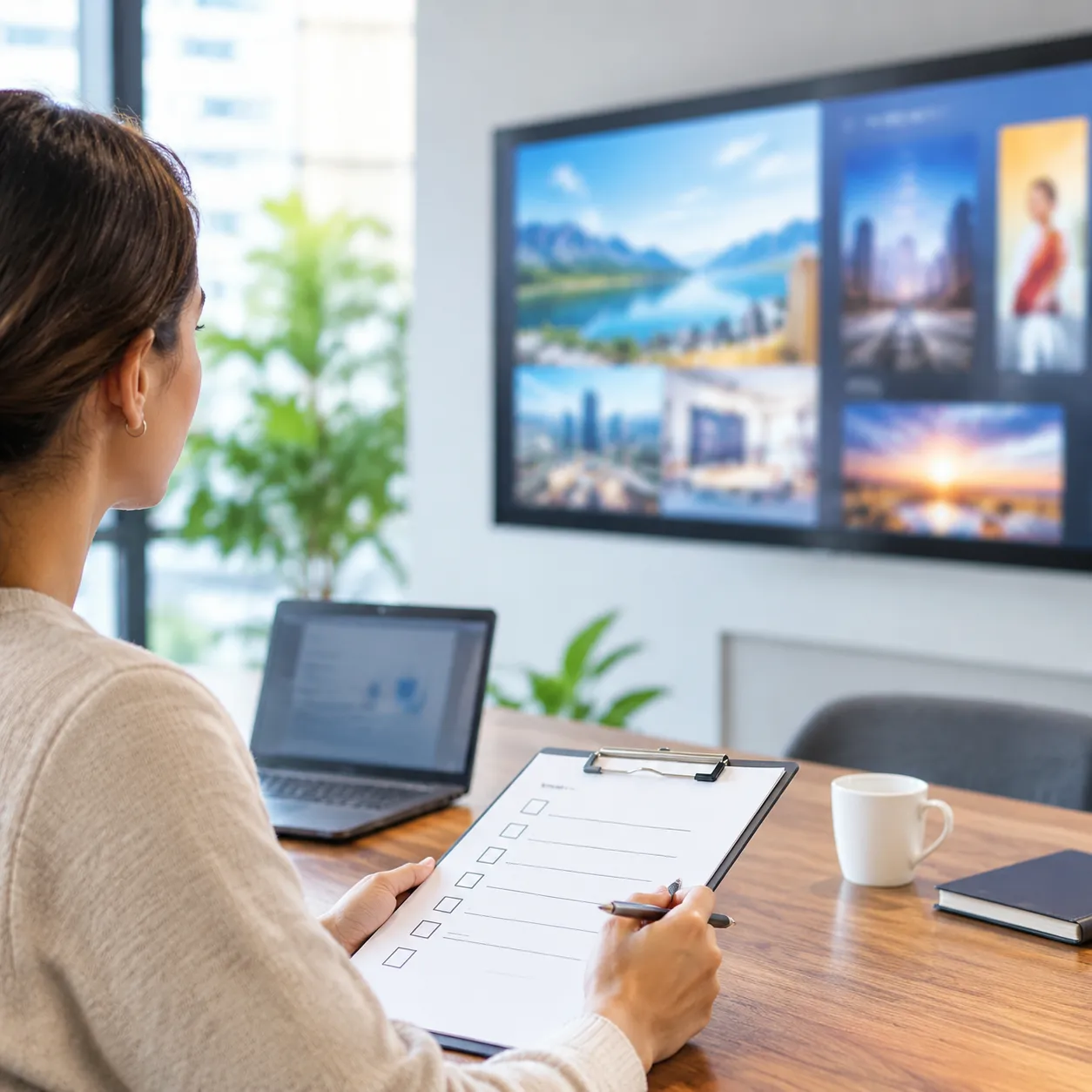
Choosing the right digital signage content management system requires balancing software agility with long-term display hardware stability. Before finalizing your software procurement, review these critical things to consider before investing in digital signage platforms to ensure reliable operation across your entire screen network.
Pre-Purchase Verification Checklist
- Hardware & OS Compatibility:
- Native support for your operating system platform (Android, Windows, Linux).
- Compatibility across target form factors, including indoor freestanding kiosks, wall-mounted panels, ultra-wide stretched bar LCDs, and outdoor totems.
- Seamless performance on both integrated SoC displays and external media players.
- Content Distribution & Layout Flexibility:
- Drag-and-drop playlist creation with multi-zone, split-screen designer tools.
- Full HD (1080p) and 4K UHD video rendering without frame drops.
- Automated scheduling, dayparting, and conditional loop playback.
- Remote Management & Fleet Control:
- Real-time terminal status monitoring with remote screen capture previews.
- Centralized Over-The-Air (OTA) firmware and software application updates.
- Remote power on/off scheduling, reboot controls, and hardware volume management.
- Offline Stability & Network Resilience:
- Automatic local content caching on the player to ensure continuous 24/7 playback during internet outages.
- Auto-reconnect and instant synchronization once network connectivity restores.
- Administration & Scalability:
- Granular, role-based user access controls and approval workflows.
- Multi-screen grouping and location-based tagging.
- Network architecture capable of scaling from pilot deployments to thousands of distributed commercial terminals.
Frequently Asked Questions About Digital Signage CMS
Do I Need a CMS for Digital Signage?
If you run a single non-networked screen showing static images from a USB drive, you may get by without one. However, for any multi-screen network, remote setup, or scheduled promotional campaign, a digital signage content management system is indispensable. Realizing how digital signage in retail stores brings more business depends on serving dynamic, time-sensitive content without manually swapping storage drives on site.
Can a Digital Signage CMS Work With Any Display?
Yes, provided the screen connects to a compatible media player or integrates a supported operating system such as Android, Windows, or Linux. Whether pairing with specialized high color gamut indoor wall-mounted displays, ultra-wide stretched bars, or outdoor kiosks, the CMS manages output resolution, orientation, and split-screen layouts seamlessly across diverse hardware form factors.
Can Digital Signage Work Without an Internet Connection?
Yes. Commercial-grade digital signage software uses local edge caching. The CMS client downloads media files, playlists, and schedules directly to the player’s internal memory. If internet connectivity drops, playback continues without interruption. The network connection is only required when publishing new assets, updating schedules, or monitoring real-time device health.
In most commercial applications, an external player is not required. Displays featuring integrated Android SoC (System on Chip) motherboards can run the native digital signage CMS application directly. You only require an external media player when your project demands heavy multi-channel video wall rendering, legacy Windows-only software, or advanced external sensor integration.
Can One CMS Manage Multiple Locations?
Yes. Cloud-based digital signage content management systems are built specifically for centralized multi-site fleet management. Terminal devices can be organized into dynamic screen groups by geographical region, store format, or screen orientation. Administrators can broadcast global updates to thousands of terminals worldwide while allowing local store managers restricted access to adjust localized promotional zones.
What Is the Difference Between Cloud and On-Premise Digital Signage CMS?
| Server Hosting | Managed cloud infrastructure (SaaS) | Local enterprise data center / LAN |
| System Access | Web browser from any location | Restricted to internal corporate network / VPN |
| Maintenance & Updates | Automatic continuous upgrades | Managed internally by dedicated IT staff |
| Ideal Use Case | Multi-branch retail, QSRs, hospitality, transit hubs | High-security banking, military, government facilities |
How Should I Test a CMS Before Deploying It?
- Hardware Verification: Install the CMS client directly onto your target display or player to confirm hardware decoding stability and resolution mapping.
- Offline Failover: Disconnect the network cable during playback to verify seamless offline looping and crash-recovery performance.
- Zone & Schedule Testing: Run split-screen templates combining 4K video, scrolling text tickers, and timed dayparting switches to evaluate rendering smoothness.
- Remote Controls: Verify remote command capabilities including remote reboot, over-the-air (OTA) APK updates, real-time screen capture previews, and timed power on/off scheduling.
 English
 Chinese (Simplified)
 Japanese
 Spanish